
AnomIQ Deep Dive: Reading Order Flow, Price Impact, and OI

Trader turned software engineer, with 4+ years building systems for crypto exchanges. Founder of AnomIQ, a real-time crypto anomaly scanner for quantitative traders.
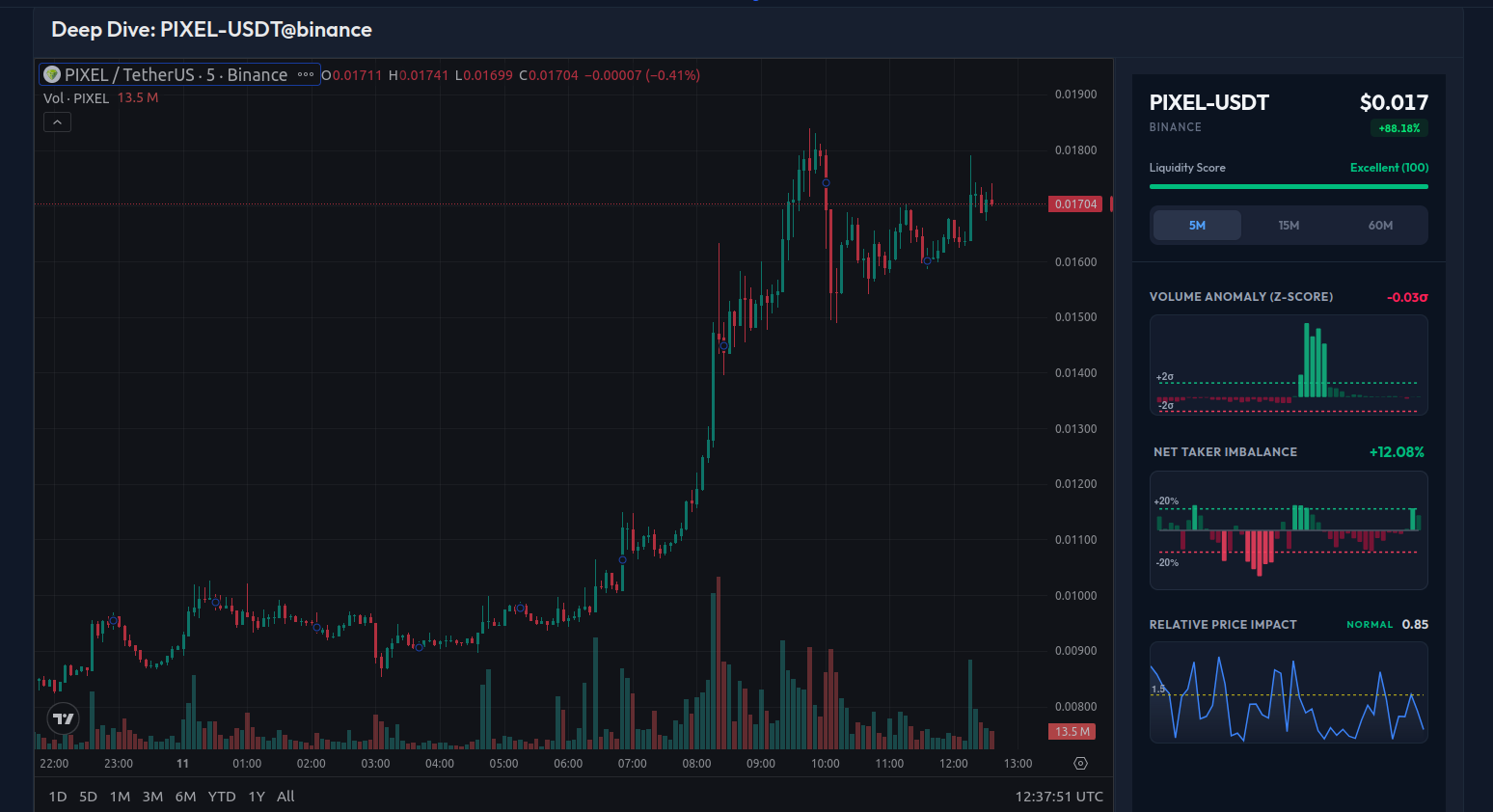
Deep Dive is AnomIQ’s per-coin panel: a TradingView price chart beside streaming order-flow statistics for one market, recalculated on rolling 5m, 15m, and 60m windows. Open it from a scanner alert, the Market Overview, or Symbol Overview. It shows whether a move is running on unusual volume, which side is taking liquidity, how far price travels per unit of volume, and, on perpetuals, whether open interest is building.
This guide covers each part of the panel: what it plots, the exact thresholds behind its labels, and what a reading can and can’t tell you.
Key Takeaways
- Both charts plot one bar per minute. Each bar is the rolling 5m, 15m, or 60m value at that minute, with 45 minutes, 90 minutes, or 6 hours of history.
- The histogram is Total Volume Z-Score against the coin’s own baseline, with dashed lines at ±2σ. Green means above that coin’s normal volume, not buying.
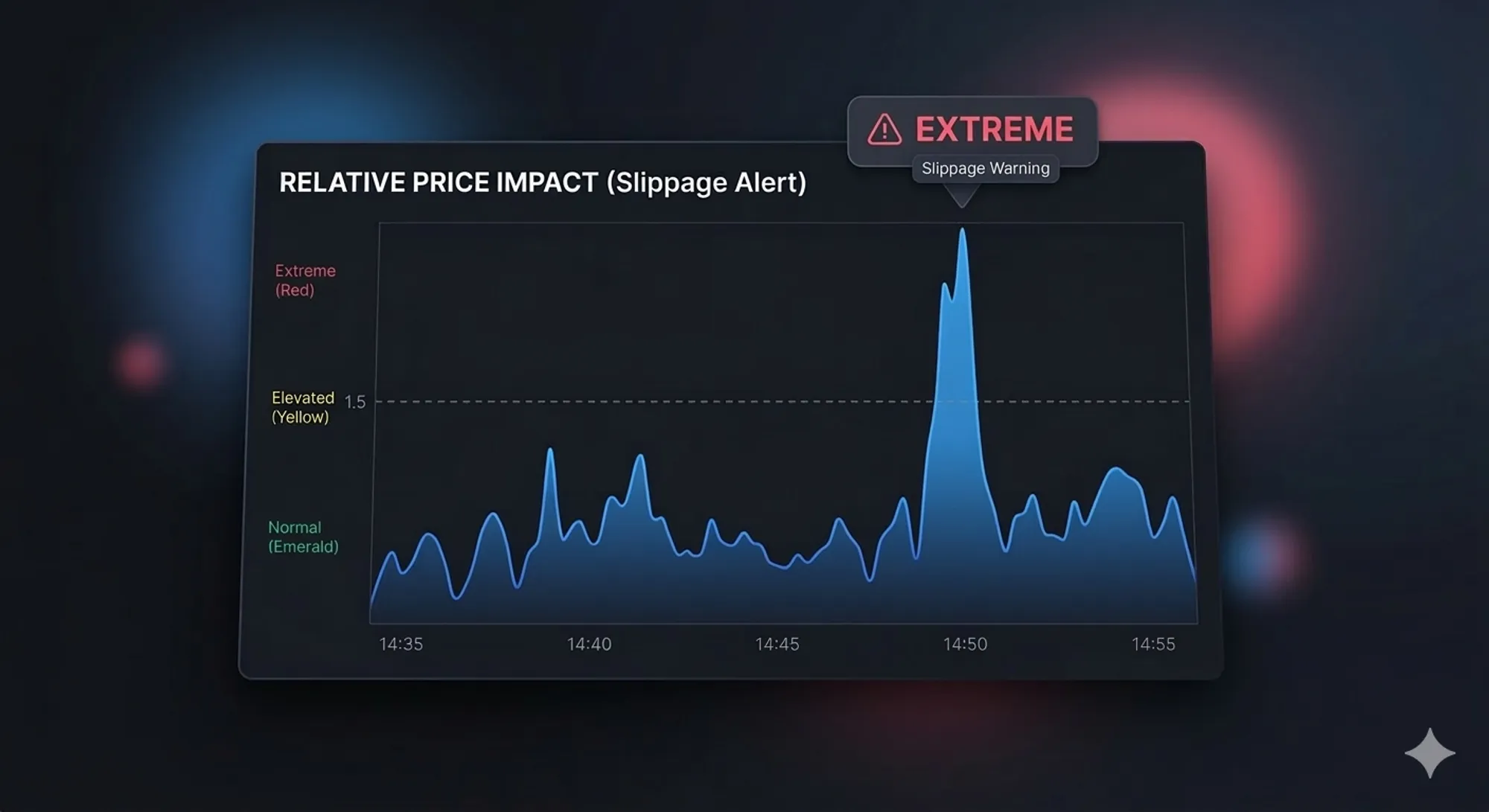
- Relative Price Impact is the window’s percentage move per multiple of normal volume. Its label reads Elevated from 1.5 and Extreme from 3.0.
- Net Taker Imbalance runs from -100% to +100%, with dashed lines at ±20%. On perpetuals, an indigo line shows open interest change since the chart’s left edge.
- Signal read checks four conditions against the current move and reports Supported, Mixed, or Needs confirmation. It describes the move, not where it goes next.
How the timeframe tabs work
The 5m, 15m, and 60m tabs at the top of the stats panel set the rolling window for every statistic. Switching tabs also switches the TradingView chart on the left to 5-, 15-, or 60-minute candles.
The panel’s own charts don’t change resolution. They always plot one bar per minute, and each bar is the rolling-window value at that minute: the preceding 5, 15, or 60 minutes. You see the minute a shift happened instead of waiting for a 15- or 60-minute candle to close.
| Tab | Each bar covers | Panel history | Price chart |
|---|---|---|---|
| 5m | Last 5 minutes | 45 minutes | 5-minute candles |
| 15m | Last 15 minutes | 90 minutes | 15-minute candles |
| 60m | Last 60 minutes | 6 hours | 60-minute candles |
Use the 5m tab to see how the last few minutes are changing, and the 60m tab to see whether a shift has persisted. One extreme minute can lift all three tabs, so count how many consecutive bars stay elevated rather than relying on which tab shows it.
Liquidity Score
The bar under the price is the coin’sLiquidity Score, a 0 to 100 measure of how continuously it traded over the last 24 hours. The panel labels it Excellent above 80, Good above 60, Fair above 40, and Poor at 40 or below.
Check it first. On a coin that trades in bursts, every z-score and ratio below it rests on thin data, and a single large print can move them all at once.
Taker flow: Current Flow Bias and Net Taker Imbalance
Current Flow Bias, the bar under Signal read, splits the window’s taker volume into buys (green, left, labeled Taker Bids) and sells (red, right, labeled Taker Asks), and prints the buy share. It’s the Current Buy Volume Ratio for the selected tab.
The chart at the bottom of the panel shows the same split over time as Net Taker Imbalance (NTI):
Net Taker Imbalance = ((Buy Volume - Sell Volume) / (Buy Volume + Sell Volume)) × 100
It runs from -100% to +100%. Positive means aggressive buyers lifting the ask outweighed aggressive sellers hitting the bid; negative means the reverse. Dashed lines mark ±20%, a 60/40 split, and bars beyond them turn a brighter green or red. For the full mechanics, see the Net Taker Imbalance explainer.
AnomIQ takes each trade’s side from the exchange feed. On Binance, that’s the trade’s buyer-is-maker flag (Binance WebSocket stream docs): if the buyer was the maker, the seller took liquidity, and the trade counts as a taker sell.
Open interest overlay (perpetuals)
On perpetual markets, the NTI chart adds an indigo line, OI Δ%: the percentage change in open interest since the first bar on the chart. It starts near 0% at the left edge and spans the chart: 45 minutes on the 5m tab, 90 on the 15m, and 6 hours on the 60m. It has its own scale on the right, with its zero lined up with NTI’s zero. The live OI reading in the chart header uses the same starting point. Spot markets have no open interest, so neither appears there.
This isn’t the scanner’s OI Change % filter, which measures fixed windows from 5m to 240m, so expect the two numbers to differ.
Open interest is direction-neutral: every new contract adds one long and one short. Read the line against the bars:
- Rising OI with positive NTI suggests aggressive buyers are opening new longs.
- Rising OI with negative NTI suggests aggressive sellers are opening new shorts.
- Flat or falling OI during an NTI spike suggests the flow is closing existing positions rather than opening new ones.
For filter recipes and the full four-combination matrix, see the Open Interest guide.
Volume z-score and Relative Price Impact
The chart labeled Vol Anomaly (Z) · Relative Price Impact overlays two series, and its header shows both live readings.
Volume z-score bars
The bars plot the coin’s Total Volume Z-Score: how many standard deviations the window’s volume sits from that coin’s own baseline for the same window. The volume z-score guide covers the statistics. Dashed lines mark +2σ and -2σ. Bars are green above zero and red below, and brighter beyond ±2σ.
Green means volume above this coin’s normal level, not buying: the bars count both sides. Current Flow Bias and NTI show which side traded.
Use the bars to weigh a move on the price chart. A run of bars above +2σ means the move came on volume well outside this coin’s normal range. Bars near zero mean ordinary participation for this coin. Bars below -2σ mean the window is unusually quiet.
Relative Price Impact line
The amber line is Relative Price Impact (RPI), on its own scale on the right. It is the window’s percentage move per multiple of normal volume:
Relative Price Impact = |window return %| / (window volume / average volume for that window)
A 2% move on four times normal volume scores 0.5. The same 2% move on normal volume scores 2.0. The live reading carries a label:
| RPI | Label | What it means |
|---|---|---|
| Below 1.5 | Normal | Price moved less than 1.5% per multiple of normal volume |
| 1.5 to under 3.0 | Elevated | Price is moving further per unit of volume; consistent with thinner liquidity |
| 3.0 and above | Extreme | Price is moving far per unit of volume; consistent with thin liquidity and higher slippage risk |
Two cautions. The return isn’t scaled to each coin’s volatility, so a coin that routinely moves several percent in a window reads Elevated more often than BTC. And a quiet window inflates the ratio: a 0.3% drift on a fifth of normal volume also scores 1.5. Check the z-score bars before reading Elevated as thin liquidity.
Low RPI during heavy one-sided flow is the opposite reading: large volume and little movement. That’s the absorption pattern explained in Absorption vs Exhaustion. You can follow it minute by minute in three real Deep Dive examples.
Signal read
Signal read, the box at the top of the stats, checks the current price move on the selected tab against four conditions:
- Taker flow agrees with price: at least 55% of the window’s taker volume is on the same side as the move.
- Volume is elevated: the volume z-score is +2 or higher.
- Price impact is elevated: Relative Price Impact is 1.5 or higher.
- Open interest is expanding: open interest is up more than 0.1% since the left edge of the chart (perpetuals only).
When two or more conditions hold, it reads Supported, with the count (for example, Supported · 3/4). If taker flow runs against the price move, it reads Mixed, whatever the count. Anything else reads Needs confirmation. Spot markets have no open interest, so the count tops out at 3/4.
Signal read describes the move in progress. It doesn’t say where price goes next: a Supported read is a reason to look closer, not a trade.
Reading the Deep Dive in order
- Liquidity Score: is the coin trading continuously enough for the statistics to mean something?
- Charts: when did volume, taker flow, price impact, and open interest change, minute by minute, and for how many consecutive bars?
- Signal read: how many of the four conditions hold, and does taker flow agree with the move?
Deep Dive is on every plan. On the free plan, its data runs 30 minutes behind; the paid plan is real-time. Open any coin from a scanner alert or the Market Overview and start with the 5m tab. If you don’t have a scanner yet, start from a preset.
Frequently asked questions
Why do the Deep Dive charts show 1-minute bars, even on the 60m timeframe?
Each bar is the rolling-window value at that minute: the preceding 5, 15, or 60 minutes. That shows the minute a shift happened instead of waiting for a 15- or 60-minute candle to close. The TradingView price chart beside the panel does switch to 5-, 15-, or 60-minute candles with the tab.
What does the OI Δ% line on the Net Taker Imbalance chart show?
On perpetual markets, it’s the percentage change in open interest since the first bar on the chart: 45 minutes back on the 5m tab, 90 minutes on the 15m, and 6 hours on the 60m. It isn’t the scanner’s OI Change % filter, which uses fixed windows. Rising OI with positive NTI suggests aggressive buyers are opening new longs, and rising OI with negative NTI suggests aggressive sellers are opening new shorts. Flat or falling OI during an NTI spike suggests existing positions are closing.
What do the Normal, Elevated, and Extreme labels on Relative Price Impact mean?
Relative Price Impact is the window’s percentage move per multiple of normal volume. Below 1.5 reads Normal, 1.5 to under 3.0 reads Elevated, and 3.0 or more reads Extreme. High readings are consistent with thin liquidity, but a small drift on thin volume can also score high, so check the volume z-score too.
What timeframes can I view in the Deep Dive panel?
5m, 15m, and 60m. The tab sets the rolling window for every statistic and how much history the charts show: 45 minutes, 90 minutes, or 6 hours. Use 5m to see how the last few minutes are changing and 60m to see whether a shift has persisted.
Is the Deep Dive real-time on the free plan?
No. Deep Dive is available on every plan, but on the free plan its data runs 30 minutes behind. The paid plan shows it in real time.
What does Signal read mean in the Deep Dive?
It checks the current move against four conditions: taker flow on the same side as price, a volume z-score of +2 or higher, Relative Price Impact of 1.5 or higher, and open interest up more than 0.1% (perpetuals only). Two or more read Supported, taker flow against price reads Mixed, and anything else reads Needs confirmation. It describes the move, not where price goes next.